|
|
|
 Shortcut menu Using the mouse in navigation mode
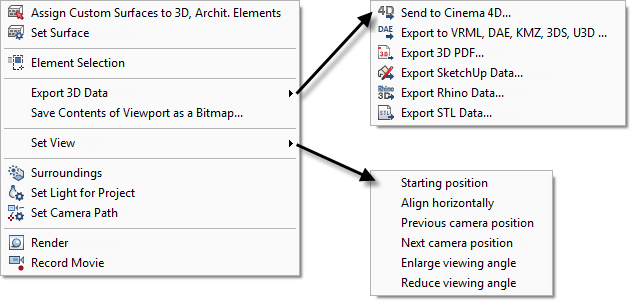
If you have activated  Navigation Mode (How) and placed the cursor within a viewport, you can open the following shortcut menu by clicking the right mouse button.
Using the tools on this shortcut menu, you can modify and manipulate the scene without having to select other tools or switching navigation mode off.
|
Initial situation:
|
 Assign Custom Surfaces to 3D/Archit. Elements
 Set Surface
You can see and change the properties of the surface or background clicked.
The following dialog boxes open:
Set Surface. Element Selection
Using Element Selection, you can select the design entities you want to display in the current viewport. The program temporarily hides all the other design entities.
Click Element Selection again to switch it off.
Export 3D Data
You can select the following tools straight from a submenu:
Save Contents of Viewport as a Bitmap
Set View
You can select the following tools straight from a submenu:
Note: The first four tools apply to the current camera path (see  Setting the camera path)! If you have not defined a camera path, these tools are without effect.
| (C) Allplan GmbH | Privacy policy |