|
|
|
You can open a drop-down list on the title bar of the Allplan window. By selecting tools in this list, you can define a Quick Access Toolbar. The size of this Quick Access Toolbar is defined by the number of tools you select.
By using the drop-down list, you can also define the sequence of the tools on the Quick Access Toolbar and open the Customize dialog box - Actionbar tab. If you use the menu bar regularly, you can click "Show menu bar" to show it all the time (as opposed to the Alt key, which shows the menu bar for a short time only).
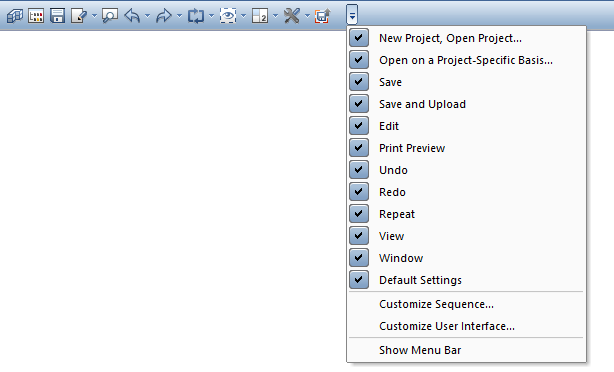
By default, Allplan the Quick Access Toolbar contains the following tools:
Function |
Use |
|
|---|---|---|
|
You can use this function to open the Project and Resource Administration dialog box, where you can select the active project, create new projects, assign attributes to projects and change the path setting for the resources (office-specific or project-specific), amongst other things. For Allplan Share projects you also have access to Bimplus project management as well as any associated tools. If you work in a Allplan workgroup then as administrator you can manage users and their access rights as well as locking information for individual projects within the workgroup. |
|
|
This function opens the Open on a Project-Specific Basis: Drawing files from drawing/building structure dialog box, in which you can, for example, change the status of drawing files or create building and drawing structures. If you are in the Layout Editor, the function calls the dialog box Open on a Project-Specific Basis: Layouts dialog box, in which you select the current layout, among other things. |
|
|
You can use this tool to save the current drawing file and the files open in edit mode or the current layout. |
|
|
You can use this tool to open a drop-down list with general edit tools you know from other Windows applications. |
|
|
You can use this tool to open print preview. The printout will be an exact match of what you see in print preview. You can define printer settings and margins, select the scale, add headers and footers, and specify how the elements look. In addition, you can change the paper size and orientation of the page. |
|
|
You can use this tool to undo one or more actions. You cannot undo changes in dialog boxes. |
|
|
You can use this tool to redo actions you have undone. |
|
|
You can use this tool to repeat the last tool you selected or one of the tools you selected most recently. |
|
|
You can use this tool to open a drop-down list with tools for controlling what’s on your screen. |
|
|
You can use this tool to open a drop-down list with tools for using and arranging viewports. |
|
|
You can use this tool to open a drop-down list with tools for defining office standards and default settings for your daily work with Allplan. In addition, you can open a dialog box in which you can define keyboard shortcuts for all Allplan tools. |
|
|
You can use this tool to open a drop-down list for arranging the tools on the Quick Access Toolbar. In addition, you can customize the user interface or show and hide the menu bar all the time. Remember: You can use the Alt key to temporarily show the menu bar. |
|
What would you like to do?
Customize the sequence of the icons
Show or hide the menu bar all the time
|
(C) ALLPLAN GmbH |
Privacy policy |