|
|
|
You edit your model in viewports. Here, you create or modify the required design entities. While doing so, you identify distinctive points and select the view type and view appropriate to the current status of your work.
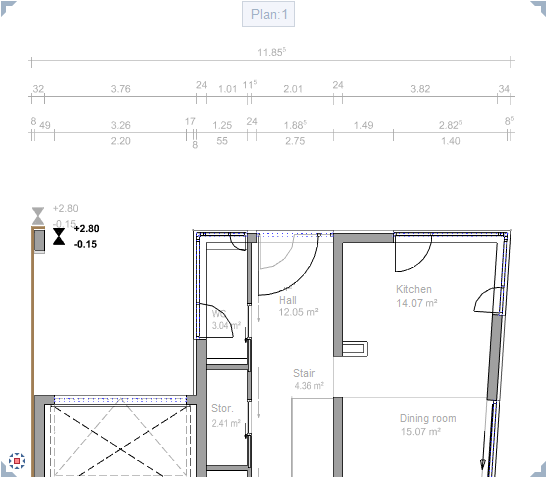
To maximize the workspace, you can float all viewports freely. If you have a second monitor, you can leave the Allplan window on one monitor, using it as a "toolbox", while editing your model in the independent viewports you place on the second monitor.
By opening several viewports in parallel and arranging them as you need, you can display your model by using different views, scales, and view types. You can display a different view in each viewport. For example, you can display a section, the entire design, or an isometric view.
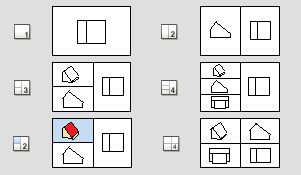
You can find the tools for using and arranging viewports in the  Window drop-down list on the Quick Access Toolbar. You can also select one of the standard viewport arrangements and then modify this arrangement to suit your needs.
With the Connected option, you can specify how the viewports interact when they are docked to the Allplan window.
What do you want to do?
Placing viewports in front of or behind the Allplan window
Docking viewports to the Allplan window
Selecting the view type in a viewport
|
(C) ALLPLAN GmbH |
Privacy policy |