

|
|
|
You can find the viewport toolbar at the bottom of the viewport. When you work with multiple viewports, each viewport has its own viewport toolbar.
You cannot see the viewport toolbar until you point to the lower border of the viewport, guaranteeing as large a workspace as possible.
Tip: You can also show the viewport toolbar all the time. To do this, open the View menu, point to Toolbars and click Show Viewport toolbar.
To move the viewport toolbar to the top of the viewport, open the View menu, point to Toolbars and click Viewport Toolbar at the Top.
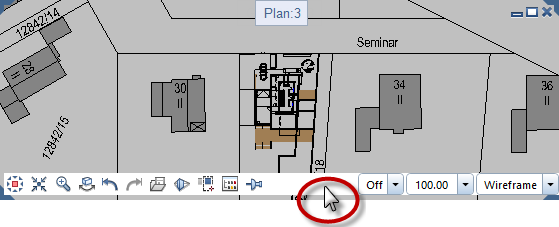
The viewport toolbar contains the following tools:
Function |
Use |
||
|---|---|---|---|
|
|
Left area: |
|
|
You can use this tool to choose between plan view and any of the predefined standard views. |
||
|
You can use this tool to select the display scale so that you can see all the elements in the visible files. |
||
|
You can use this tool to zoom in on a section. To do this, enclose the elements you want to zoom in a selection rectangle. |
||
|
You can use this tool to restore the previous view or display scale (if you had selected a different view or scale before you selected the current setting). Up to a total of 50 view settings are saved temporarily. |
||
|
You can use this tool to restore the next view or display scale (if you have already selected a subsequent view or scale). Up to a total of 50 view settings are saved temporarily. |
||
|
You can use this tool to save the current view under a name of your choice or retrieve a view you saved beforehand. |
||
|
You can use this tool to display 3D models in three-dimensional space in a perspective view by entering an eye point (observer) and a target point. You can choose between parallel projection and central projection for the perspective view. You can also use this tool to create a view based on the building structure. |
||
|
You can use this tool to switch between parallel projection and central projection. Select this tool to display the model in central projection. |
||
|
You can use this tool to select the design entities you want to display in the active viewport. The program temporarily hides all the other design entities. |
||
|
You can use this tool to temporarily hide drawing files that are currently visible in the active viewport. |
||
|
You can use this tool to place the viewport so that it is always on top (that is, in front of) the other ones. |
||
|
|
Right area: |
|
|
Exposure |
You can use this box to control the brightness in viewports of the Animation or RTRender view type. You can enter a value between -25 and 25. |
|
|
You can use this tool to display your design in an architectural section for which you have already defined the |
||
|
You can use this tool to select the scale for displaying the model on the screen. |
||
|
You can use this list box to select one of the predefined view types (Wireframe, Hidden, Animation, Sketch or RTRender) for the active viewport. Of course, you can also select a view type you defined yourself. |
||
|
(C) ALLPLAN GmbH |
Privacy policy |


 to modify various settings of the view types. The settings apply to all the viewports that use this view type. Click


