Objects palette

The Objects palette lists all objects contained in the currently activated layers (with layer status active, active in background, or passive) sorted according to specific criteria. You can specifically show or hide selected objects and define their transparency. You can also activate, deactivate, or highlight objects using color coding in the Objects palette.
Note: Custom sorting, transparency, and color-coding settings can be saved and reloaded using the  Save as Favorite and
  Load Favorite functions (bottom action bar).
The Objects palette consists of the following sections:
Sort Criterion buttons
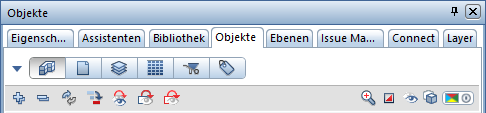
 Custom or
  Predefined
Use this to change the default sort order. Various categories are available for each sort criterion.
If custom sorting has been opened using Custom, you can use a context menu to enable or disable sort criteria and multiple categories.
If Predefined is selected, the following six sort criteria are available:
 Sorted by WDV
All objects present in the currently active layers are grouped and listed alphabetically. In the group hierarchies, all individual objects are listed at the lowest level. The top hierarchy levels here are formed by the information from the building structure.
 Sorted by drawing files
In this list, the layers containing the placed objects form the top hierarchy level.
 Sorted by layers
The primary sorting criterion here is the layers assigned to the objects. If an object (e.g., window opening) consists of multiple elements (e.g., sill + window SmartPart) assigned to different layers, the object is listed under the *various* sorting criterion.
 Sort by material
The first hierarchy level here is the material assigned to the objects. Objects without a Material attribute are listed under *Not defined*.
 Sorted by trade
Here, the first hierarchy level is the trade assigned to the objects. If objects do not have a Trade attribute, they are listed under *Not defined*.
 Sorted by attribute
The first hierarchy level here is a custom attribute assigned to the objects. In the custom sorting context menu, up to six custom attributes can be selected as sorting criteria. Objects without a corresponding attribute assignment are listed under *Not defined*.
Control buttons
 Expand selected entries
Expands the display so that all sub-entries of the selected node are displayed.
 collapse all entries
Condenses the view to show all entries without their subentries.
 Update Palette
Updates the palette display.
 Jump to next active element (Shift+A; backward with Shift+S)
Marks the next active element in the hierarchy.
 Invert Visibility
Reverses the current visibility setting.
 Hide All Inactive
Shows only active elements.
 Hide All Active
Hides the active elements.
 Zoom to activated objects
Zooms to the selected active objects.


 All Inactive / All Active
Toggles between All Inactive and All Active. indicates that not all objects are currently activated or deactivated.


 Hide All / Show All
Toggles between Hide All and Show All. indicates that not all objects are completely visible or hidden.

 All Opaque / All Transparent
Toggles between All transparent and All without transparency.
Note: This setting only applies to the Animation display mode. This requires the  Options, Work Environment - Display page, Graphics Hardware Acceleration area, to have the Use hardware acceleration for graphics window option enabled.
 indicates that both transparent and non-transparent objects are listed.
Hovering over the icon allows you to select a transparency level 


 = from 0% to 100% (in 20% increments). This option lets you set the same transparency level for all objects at once.
 Color coding
You can select a color for all objects in the header. Colors are selected from a drop-down list. Use the on/off icon to disable and re-enable the color.
Note: This setting only applies in the Animation view mode. This requires the option Use hardware acceleration for graphics window to be enabled in Options, page Work Environment - Display under Graphics Hardware Acceleration.
The color can be set for each group. Individual objects have the same color as the upper or lower object group (e.g., openings and/or parapet, window, door opening, etc.).
If the subgroups within an object group (e.g., openings) have different colors (e.g., parapet, window, door opening, etc.), a mixed color selection icon appears in the parent group.
Objects
Depending on the selected sort criterion, this lists all objects contained in the currently activated layers (with layer status active, active in background, or passive).
In the object list, you can modify the activation, visibility, and transparency of objects directly in each row. If multiple objects in a hierarchy level are selected, these changes will apply to all of them.
The following buttons are available for this:
Activation: / = active / inactive
= indicates that both active and inactive objects are listed under this hierarchy level.
If the objects are on a passive drawing file or a locked layer, they cannot be set to active.
You can switch between active <--> inactive by clicking the left mouse button. At the lowest hierarchy level, double-clicking the Activation button zooms in on the corresponding object in the floor plan.
Visibility: / = visible / hidden
= indicates that this hierarchy level contains both visible and hidden objects.
 = indicates that the layer on which the object/object group is located is set to invisible or that the object is deactivated in the screen display.
Toggle between visible <--> hidden by clicking the left mouse button.
Transparency: = from 0% to 100% (in 20% increments)
Note: The transparency setting only applies in the Animation display mode. This requires the Use hardware acceleration for graphics window option to be enabled in Options, Work Environment - Display page under Graphics Hardware Acceleration.
Hovering the cursor over the icon displays the available transparency levels.
= indicates that the objects listed below this hierarchy level include both transparent and non-transparent items.
= indicates that all objects listed below this hierarchy level are 100% transparent and are therefore not visible in the Animation view mode.
For objects where transparency is not supported (e.g., 2D objects), hovering the cursor displays the following tooltip: Transparency is not available for these objects.
Note: For certain 3D objects (e.g., opening SmartParts), transparency levels cannot be selected. These objects only support switching between 0% transparency and 100% transparency. If a transparency level (20%, 40%, 60%,% or 80%) is applied to all objects at once (via the "Control" buttons at the top of the Objects panel), these 3D objects are set to 100% transparency. Selecting the 0% and 100% transparency levels has the% same effect on all 3D objects.
Bottom Action Bar
Allows you to load custom settings for sorting, transparency, and color coding saved in a favorites file.

Allows you to save the current custom settings for sorting, transparency, and color coding in a favorites file.
 Settings
Opens the Objects options palette.
Here you define the label used to list rooms in the Objects palette: by Object name, Description, or Function.