Objects by Layer palette

In the Objects palette, the predefined sorting criterion  Sorted by layers is active. The primary sorting criterion here is the layers assigned to the objects. If an object (e.g., window opening) consists of multiple elements (e.g., sill + window SmartPart) assigned to different layers, the object is listed under the *varies* sorting criterion (sorted by object groups and types).
Clicking  Custom expands the list box in the Objects palette.
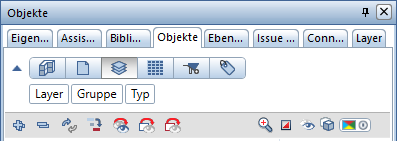
The displayed categories show the current sort order: Layer - Object Group - Object Type.
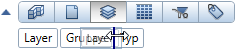
When you move the cursor in the extended list box, it changes to a double arrow. You can now click and drag any of the sort criteria with the left mouse button to change the order in which the objects are listed.
Right-clicking one of the categories opens a shortcut menu where you can activate or deactivate sort criteria and categories.
The action bar (at the bottom of the palette) contains the tools  Load Favorite and
  Save as Favorite on the left. Here you can save the custom sorting and reload it at a later time.
If you move the cursor over the Representation of the layer status within the list, a flyout opens in which you can change the status of the layer. You can change the layer status to  Current,
  Modifiable,
  Visible, locked or
  Hidden, locked .

You can assign an object to another layer in the list. To do this, the object must be on an editable layer (layer status current or editable) and be visible ( ). You can move the object using drag-and-drop or via the object's shortcut menu:

Use  Cut to cut the object (lowest hierarchy level).
To assign the cut object to a different layer again, use the shortcut menu of the desired layer:

Use  Paste to insert the cut object below the selected layer. This sorts the object into an existing object group. If there is no matching object group, a new one is created.
Note: If a  color code was assigned to the object you are moving, the color of the object changes to match the color used in the target folder after the move. If you undo the operation, the color assignment is also undone.