|
|
|
Pattern lines are not independent elements but linear 2D elements with the pattern line format property. When you create elements with the pattern line format property, a pattern is displayed along the reference element. You can use all the patterns that are defined. The pattern stays at a constant height.
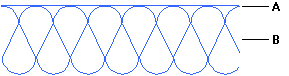
A: Reference line
B: Pattern
Using the pattern line settings, you can configure Allplan to show the reference element too. All linear 2D elements you create with the tools in the Draft and Advanced Draft modules (for example, line, rectangle, ellipse, spline, parallel lines etc.) can be assigned the pattern line property. These 2D elements get the pattern line property if the Pattern Line option (Properties palette) or  Pattern Line on/off (Format toolbar) is selected (pressed in) while you are creating these elements.
You can use  Modify Pattern Lines to display any 2D elements as pattern lines or to convert pattern lines back to ‘normal’ design entities.
To select a pattern line, you need to click its reference element. As pattern lines are not independent elements, Allplan will also find them when you filter the base element. If you are using the Line filter, for example, Allplan will also find all lines that were created as pattern lines. To filter the pattern line property exclusively, use the  Filter by pattern line property filter.
What do you want to do?
Learn how pattern lines are displayed at different scales
Switch the pattern line property on/off
Define parameters of pattern lines
Display 2D elements as pattern lines
Convert pattern lines back to their original elements
Modify parameters of individual pattern lines
|
(C) ALLPLAN GmbH |
Privacy policy |