Text parameters
 Palette Clipping Path of palette Create Clipping Path + Modify Clipping Path
Palette Labeling of palette Generate/Modify View + Generate/Modify Section
Palette Representation of palette Section Along Curve + Modify Section Along Curve
Palette Labeling of palette Section Along Curve + Modify Section Along Curve
Text
Height / width / ratio of height to width
Enter the height, width or ratio of height to width of the text width. Enter the height and width of the text in line with the configured length unit stated in [mm] or [inches]. See also Relationship between reference scale and text size.
If you change one of these parameters, an additional parameter will be automatically changed.
- If you change the height, the width will be changed in line with the configured ratio.
- If you change the width, the ratio will be changed in line with the corresponding height.
- If you change the ratio, the width will be changed in line with the corresponding height.
Font
Here you can select the font type. You also have the 20 Allplan fonts to choose from alongside the system fonts.
Emphasis
Here you can define the  Bold,
Bold,  Italic,
  Underline and
  Crossed out formatting for the entire text by clicking on the respective button.
With regard to Allplan fonts, the Bold and Crossed out formats do not have any impact on the text.
Angle for Allplan font in italic type
Define the angle at which text that has been formatted in italics is displayed for Allplan fonts here.
Color
Use this to define the text color. The text color is only displayed in the draft window if the option is off.
Layer
Specify the text layer.
Frame
Border around paragraph text
If this option is selected, a border will be drawn around the text with the Offset, Pen thickness, Line type and Color properties defined here.
Note: The offset of the border defined here is also used for the fill offset around the text, even if the Border around paragraph text option is disabled.
Background
Background color
Here you can select whether blanking applies to the text you enter; in other words, the program draws a fill around the text. This ensures that you can always read the text even if you have placed it on top of a pattern or hatching, for example.
In terms of the background color, you can use either Background color of viewports, which is set in  Options - Display, or another custom color.
Note: The value configured for the fill offset around the border is used for the fill offset around the border.
Miscellaneous
Column angle
Here you can enter the column angle in degrees. Every new line of text is indented in accordance with the column angle specified.
 Constant size in layout
If Constant size in layout is active, the size of text in layouts always stays the same, even if you change the scale of the layout element. If this option is not active, the size of text in layouts changes with the scale of the layout element.
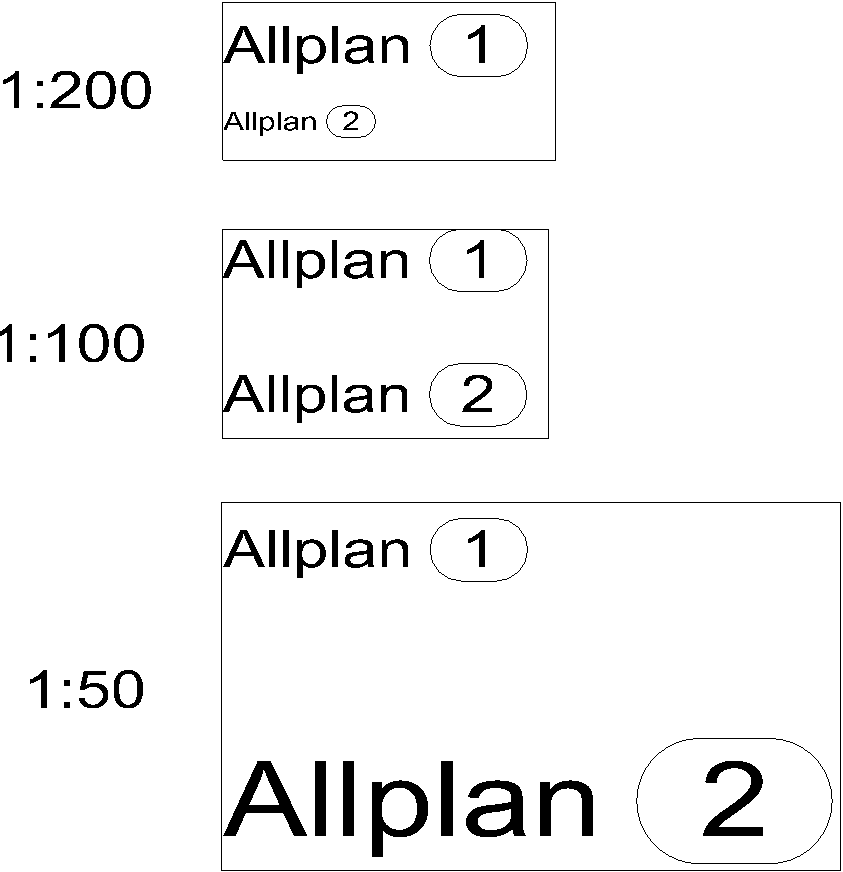
1 = constant in layout
2 = not constant in layout
Buttons in the border of the palette
You can find the following tools in the lower border of the palette:
 Match properties: You can match the parameters of existing labeling.
 Load favorite: You can select and load a text favorite file (*.txtfnfx) that you have already saved.
 Save as a favorite: You can save all current definitions as a text favorite (*.txtfnfx).
 Restore basic settings: You can restore the default settings.