

|
|
|
Opening in walls with multiple construction layers are basically edited in the same way as openings in single-tier walls. Make sure you edit each construction layer separately. When you select the openings in a single step, the changes you make apply only to the first layer.
The following example, which corresponds to "Moving an opening in a wall of the as-built category", shows how to move a window in a two-tier wall.
To move a window in a two-tier wall of the as-built category
 Conversion for Building Alteration Work tool.
 Note: Openings are automatically inserted in the associated wall, regardless of whether the drawing file with the wall is current or open in edit mode.
Start by converting the as-built opening to a demolition object.
Conversion for Building Alteration Work.  Properties and define the demolition parameters for the as-built opening in one of the following ways:
 to reset all the parameters to their defaults.
 Match parameters and adopts the parameters of a suitable element in one of the building alteration wizards.
 Each new component automatically gets the New building category.
To use the components in the building alteration wizards, do the following:
Match. This opens the tool that was used to create the component and takes all the parameters from the wizard.
 Demolition Object, New Building Object. Properties and define the parameters for the first layer of the demolition object and the new building object in one of the following ways: to reset all the parameters to their defaults. Match parameters and match the parameters of a suitable element in one of the building alteration wizards.
 Note: If you want to match the properties from existing elements or from a wizard, you must activate Use parameters twice to define the properties for the new building object and for the demolition object.
Select the demolition opening and the new building opening.
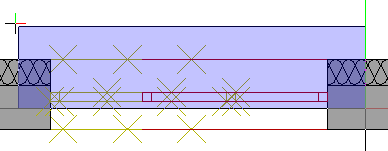
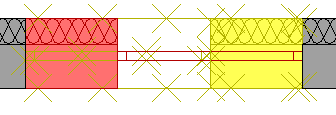
The program selects these parts of the openings, displaying the edges of the first construction layer in selection color:
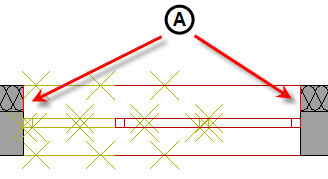
Allplan automatically creates demolition and new building objects of the correct geometry and height association in the first construction layer in the wall. In addition, these objects are automatically given the relevant format properties and attributes.
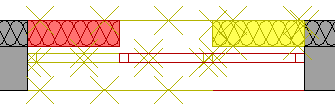
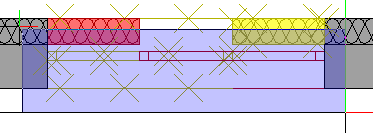
Allplan automatically creates demolition and new building objects of the correct geometry and height association in the second construction layer in the wall. In addition, these objects are automatically given the relevant format properties and attributes.
| (C) ALLPLAN GmbH | Datenschutzbestimmungen |