Dimensions
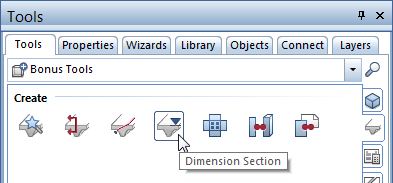
To dimension sections along curves later, you can use the new  Dimension Section tool (
 Bridge and Civil Engineering module - Create area).
After you have clicked the view border of a section, the steps are similar to those in  Elevation Point. There are the following differences:
- Clicking the first point to be dimensioned defines the position of the dimension line.
If the Symbol at reference point option is not active, the first point defines the position for all the other elevation points. You can move the elevation dimensions later using the  Move Dimension Line tool in the Dimension Lines module.
 - Allplan takes the reference point for elevation dimensioning from the section.
Notes:
- While creating elevation dimensions, you can change the global dimension line parameters at any time. The context toolbar provides .
- Double-click a dimension line with the left mouse button to open the Dimension Line dialog box, where you can modify the parameters. In this case, the dialog box also includes the Section/Point tab.
- To modify the elevation dimensions of the section, you can use a lot of tools of the Dimension Lines module. You can select these tools on the shortcut menu of the dimension line. For example, you can use
 Add Dim. Line Point or
  Del Dim. Line Point.


