

|
|
|
Allplan 2016 introduces a new palette - the Objects palette.
The new Objects palette displays all components of a virtual building model in a clear and compact manner. You can control visibility, showing and hiding elements and element groups as you need. In addition, you can modify element information.
The Objects palette lists all objects and elements in the currently open drawing files (current or open in edit mode or open in reference mode). You can sort these objects and elements according to certain criteria. You can  show or
  hide selected objects and elements as you need. You can even
  activate or
  deactivate objects and elements in the Objects palette. Using the
  Zoom function, you can quickly zoom in on selected objects and elements or on groups of objects and elements. The elements are at the lowest level in each list. To zoom in on such a single element, double-click the element in the list with the left mouse button.
Using the various navigation options in the Objects palette, you can quickly and easily find the objects and elements you need.
The list box of the palette offers four icons with predefined sorting criteria:
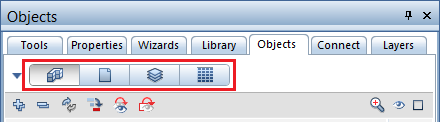
 Sort by building structure:
  Custom to expand the list box of the Objects palette: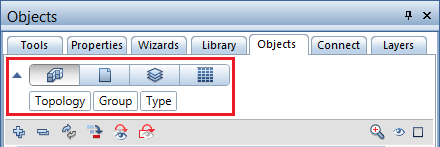
The categories displayed indicate the current sort sequence: Topology - Element Group - Element Type.
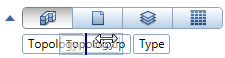
When you move the cursor in the expanded list box, it changes to a double-headed arrow. By clicking a category and dragging it to a new position, you can change the sequence in which Allplan lists the objects and elements.
 Sort by drawing file: Custom to switch between predefined and custom sorting.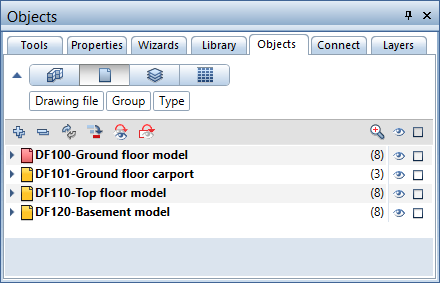
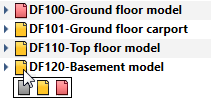
When you point to the icon indicating the drawing file status in the list, Allplan opens a flyout where you can change the status of the drawing file. You can switch between  Active,
  In edit mode and
 In reference mode.
 Sort by layer: Custom to customize predefined sorting for your needs. Here, you can change the sequence of the following categories: Layer - Element Group - Element Type.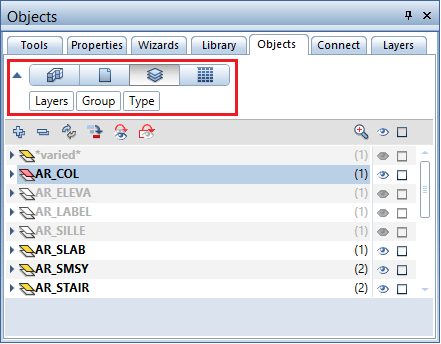
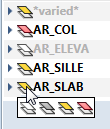
When you point to the icon indicating the layer status in the list, Allplan opens a flyout where you can change the status of the layer. You can switch between  Current,
  Modifiable,
  Visible, frozen and
 Hidden, frozen.
 Sort by material: Custom to customize predefined sorting for your needs. Here, you can change the sequence of the following categories: Material - Element Group - Element Type.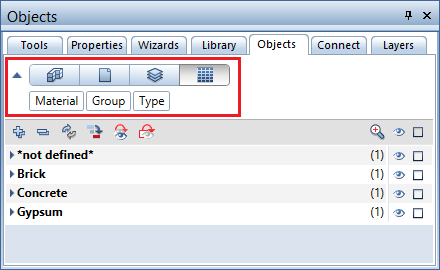
If you have customized sorting, the expanded list box offers a shortcut menu where you can add more categories or remove categories you do not need.
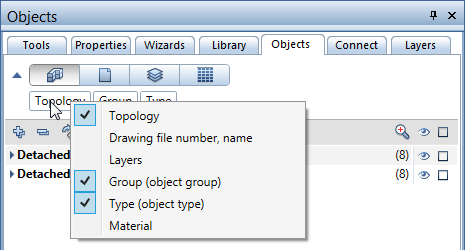
If you have selected the Sort by layer or Sort by material criterion, you can use drag-and-drop operations to assign a different layer or material to the elements listed. Requirements: the other layer or material is also listed and the element in question is visible () and on a layer you can modify (layer status set to Current or Modifiable).
To do this quickly, you can also use the shortcut menu (using the Sort by Material criterion as an example):
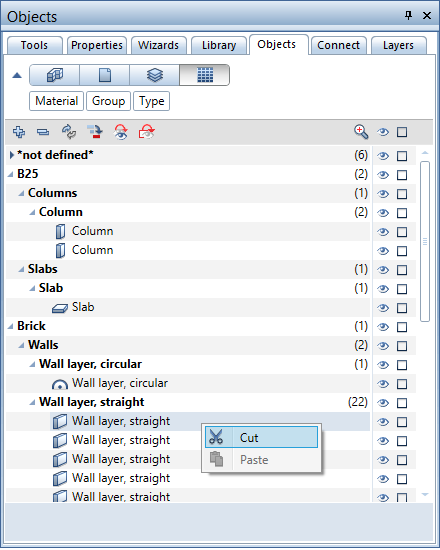
Click  Cut to cut an object or element or several objects or elements (at the lowest level in the hierarchy).
To assign a different material to the objects or elements cut, use the shortcut menu of the new material you want to assign:
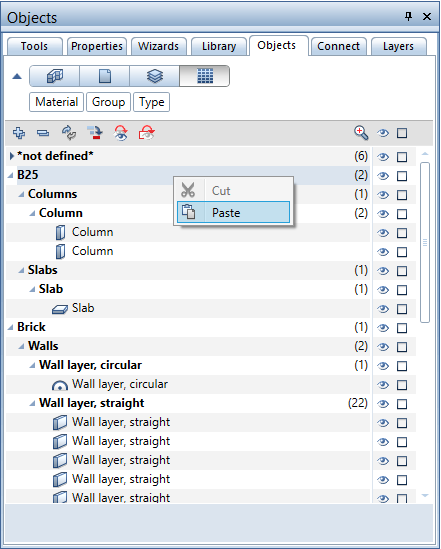
Click  Paste to insert the object(s) or element(s) cut under the selected material. Allplan adds the object or element to the appropriate element group. If it cannot find an appropriate group, it creates a new one.
You can also find these shortcut menus when you Sort by layer.
| (C) Allplan GmbH | Privacy policy |
