

|
|
|
 Task area 3D Objects
You can use this tool to insert lines or linear segments in 3D B-splines or 3D polylines. This does not divide the B-spline or polyline; it is still a single element.
Tip: For example, this tool is useful for editing bridges or road location lines.
To insert a line in a 3D curve
 Insert Line in 3D Curve (How).
You can see the starting point of the line as a preview.
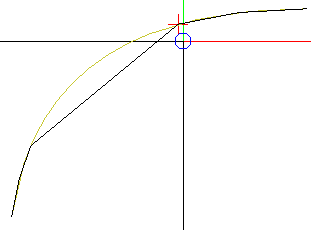
Note: Using this tool, you can also insert line segments into a straight 3D line. This way, you can insert points into a straight 3D line, thus dividing this line into sections.
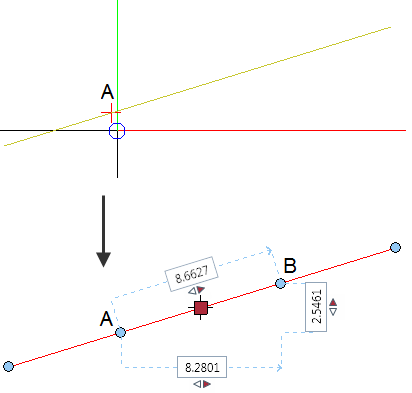
A Start point of line segment
B End point of line segment
|
(C) ALLPLAN GmbH |
Privacy policy |

 Task
Task 