

|
|
|
 Task area 3D Objects
You can use this tool to create solids or surfaces by extruding an open or closed profile along a path.
Tip: The  Extrude Along Path tool deletes neither the profile nor the path. We recommend that you draw the basic elements in a separate drawing file. You can then open this drawing file in edit mode and create the surfaces or solids in the current drawing file.
To extrude a profile along a path
Extrude Along Path (How).Note: The profile must be planar and continuous; it must not intersect itself. The profile can be open or closed. If the profile consists of several elements that you cannot select with one click, you can use the  Brackets to select them.
Note: You can also use edges of existing elements for the profile.
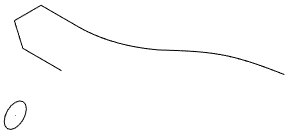
Note: The path must be planar and continuous; it must not intersect itself. If the path consists of several elements that you cannot select with one click, you can use the Brackets to select them.
Note: You can even use a path that does not touch the profile. In this case, you can select the starting point and the end point of the path and move the path to a defined point of the profile.
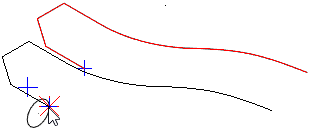
ALLPLAN checks whether it can process the geometry of the profile and the path, choosing an appropriate setting for Profile rotation.
You can see a preview of the solid; the input options appear. If ALLPLAN cannot process the geometries, you can see a message.
 None
None  Default Extrude Along Path matches that of
  Copy Along Any Path with the Object rotation - Default setting.
 Z-axis locked
 Allplan creates the solids or 3D surfaces without deleting either the profile or the path.
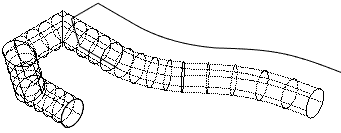
Note: When you use polygonal elements as initial elements, Allplan creates polygonal 3D objects if this is possible. When you use initial elements with curves, Allplan creates general 3D objects (BREPs, NURBS).
Note: Solids and surfaces get the color selected in the Properties palette.
|
(C) ALLPLAN GmbH |
Privacy policy |

 Task
Task 