|
|
|
 Task area Reinforcement Views + Views and Sections + Bar Reinforcement + Meshes + BAMTEC
Bar, mesh and BAMTEC® reinforcement can be placed with or without a 3D model.
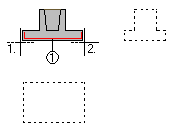
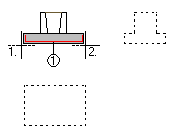
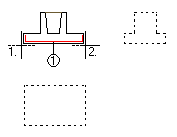
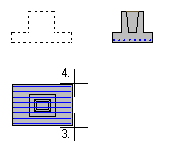
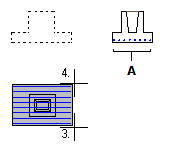
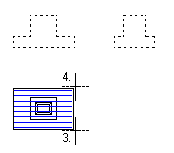
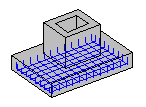
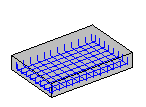
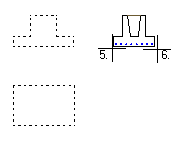
There are three methods for creating a reinforcement drawing depending on whether your reinforcement drawing is based on a 2D or 3D general arrangement drawing (they can also be combined):
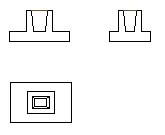
Method 1: |
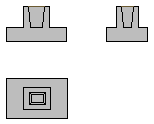
Method 2: |
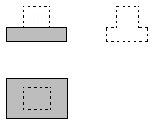
Method 3: |
1. Formwork |
1. Formwork |
1. Formwork |
First, model the formwork using the tools in the 3D Objects or Components task area. |
Draw the formwork using the tools in the 2D Objects task area. |
Draw the formwork using the tools in the 2D Objects task area. |
The formwork exists in three dimensions. |
The formwork does not exist in three dimensions. |
The formwork does not exist in three dimensions. |
|
|
|
You do not need to convert this 3D formwork to shell entities. |
Create an auxiliary 3D solid using the tools in the 3D Objects task area. |
|
|
|
|
Create auto-updating views and sections based on the 3D floor plan. To do this, use the tools in the Reinforcement Views or Sections task area. |
Create at least one auto-updating view from the auxiliary 3D solid. To do this, use the tools in the Reinforcement Views or Sections task area. |
|
|
|
|
2. Enter: shape and position |
2. Enter: shape and position |
2. Enter: shape and position |
Define the bending shape and position of the bar to be placed using the tools in the Bar Reinforcement and Meshes task areas. |
Define the bending shape and position of the bar to be placed using the tools in the Bar Reinforcement and Meshes task areas. |
Define the bending shape and position of the bar to be placed using the tools in the Bar Reinforcement and Meshes task areas. |
|
|
|
3. Placement |
3. Placement |
3. Placement |
Then place the bar or mesh in a second view. |
Then place the bar or mesh in a second view. |
Then place the bar or mesh in a second view. |
Number off is automatic. |
Number off is automatic. |
Number off is manual. It is up to the user to indicate to the program that the bars/meshes are to be added. |
The reinforcement is automatically displayed in all views and sections (existing ones and views and sections you create later), which update automatically to reflect any changes you make. |
If additional views and sections of the reinforcement are created, then the reinforcement is automatically displayed in them and they will update to reflect any changes you make. |
The bars or meshes are not automatically displayed in all the views and sections. |
|
|
|
Based on the formwork and the reinforcement, Allplan automatically creates a three-dimensional model in the background. |
Based on the reinforcement, Allplan automatically creates a three-dimensional model in the background. |
To display intersected bars, you need to place them in a special manner. |
The model is available at any time. All you need to do is set a 3D view. |
The model is available at any time. All you need to do is set a 3D view. |
Number off is manual. It is up to the user to indicate to the program that the bars or meshes are not to be added. |
|
|
|
You can create additional, auto-updating views and sections for the formwork and reinforcement at any time. To do this, use the tools in the Reinforcement Views or Sections task area. |
You can create additional, auto-updating views and sections for the reinforcement at any time. To do this, use the tools in the Reinforcement Views or Sections task area. You can manually draw the edges of the formwork later using the tools in the 2D Objects task area. |
|
|
Note: If you want to create a reinforcement drawing based on a complicated 2D general arrangement drawing, use method 2 and combine it with method 3. |
|
|
(C) ALLPLAN GmbH |
Privacy policy |