

|
|
|
During conversion, you can use three parameters to control how the program adjusts the units in the source system to the units in the destination system. Depending on the source system and destination system, you might not be able to change the Unit and Layout scale parameters. By using the Resizing factor, however, you can always adjust the units.
You can define these parameters in the Settings dialog box in the Coordinates and length parameters area.
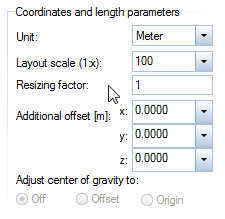
Unit
Depending on whether your partner office is using m, cm or mm, they will enter 1.0, 100.0 or 1000.0 when drawing a one-meter line. With the Unit parameter, you indicate to the program whether the value is to be interpreted as mm, cm, dm and so on.
During import: Select the unit with which the file being converted (the source file) was created.
During export: Select the unit with which the exported file (the destination file) is to be further edited.
Contact your partner office to find out which unit they use in their files. The reason for this is that in the case of coordinate entries and length entries, only the figure (and not the unit) is present in the source file. In DWG/DXF files, the elements can be stored in any unit.
Note: In some systems, the unit in which lengths and coordinates are saved is predefined and cannot be changed. In Allplan, lengths and coordinates are always saved in mm, regardless of which unit was used when the data was entered. To account for different units, use the Resizing factor parameter.
Note: The unit that the destination system uses is always predefined; it varies depending on the destination system. For conversions to Allplan, for example, data is always saved in mm; for conversions to AutoCAD, the unit is always m.
Layout scale
Select the reference scale with which the file to be converted was created. The layout scale controls text size, text spacing, the size of point symbols, line type definitions and hatching definitions.
Note: Depending on the source system and destination system, it is not always possible to change the layout scale. For example, when you export data from Allplan, the current drawing file scale is displayed and cannot be changed.
Resizing factor
You can use this to enlarge (>1) or reduce (<1) coordinates and length values in the data to be converted. This parameter is always available. For more information, see Resizing factors.
|
(C) ALLPLAN GmbH |
Privacy policy |
