

|
|
|
 Overview of options (Options - overview, Configurations) Saving, retrieving and resetting options
You can make general settings for Allplan.
Selection
Selection color
You can use this option to specify a color for selected elements. Select the color in the list box.
Selection preview color
You can use this option to specify the color that is used to displayed elements in the selection preview. Select the color in the list box. You can specify the type and scope of the selection preview using the Selection preview option.
Selection preview
When no tool is active: You can specify whether the selection preview appears when no tool is active (for example, delete).
When a tool is active: You can specify whether the selection preview appears when a tool is active (for example, delete).
When matching elements: You can specify whether the selection preview appears when you match elements.
Selection rectangle
When you select this option, you enter selection windows with just two mouse clicks. This way, it is easier to zoom or pan while opening selection windows.
Detection area for finding elements
The element detection area defines the radius of the area around the cursor in which elements are detected. The default setting is 2 mm.
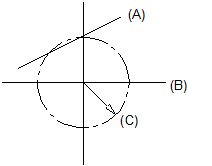
(A) Element line
(B) Crosshairs
(C) Element detection area
Element info
Display element info
When no tool is active: You can specify whether element information appears when no tool is active (for example, delete).
When a tool is active: You can specify whether element information appears when a tool is active (for example, delete).
When matching elements (name only): You can specify whether element information includes the element names when you match elements.
Select details to be displayed
You can specify what kind of element information is displayed in the ToolTips that are attached to the cursor. When ToolTips appear on the screen, you can show all the information on the relevant element by selecting the Tab key (regardless of the setting you make here). Please note that this does not work with architectural elements.
Color
You can specify the color you want to use to display the box around element info and the text itself.
Time limit for display
You can specify how long it takes until ToolTips appear at the cursor.
Transparency
You can use this option to specify the level of transparency for element information. You can enter a value between 0 (opaque) and 100 (completely transparent).
|
(C) ALLPLAN GmbH |
Privacy policy |
 How to open the dialog box
