

|
|
|
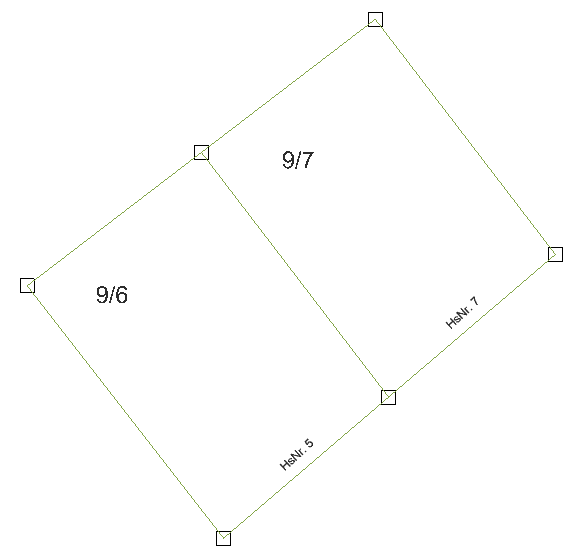
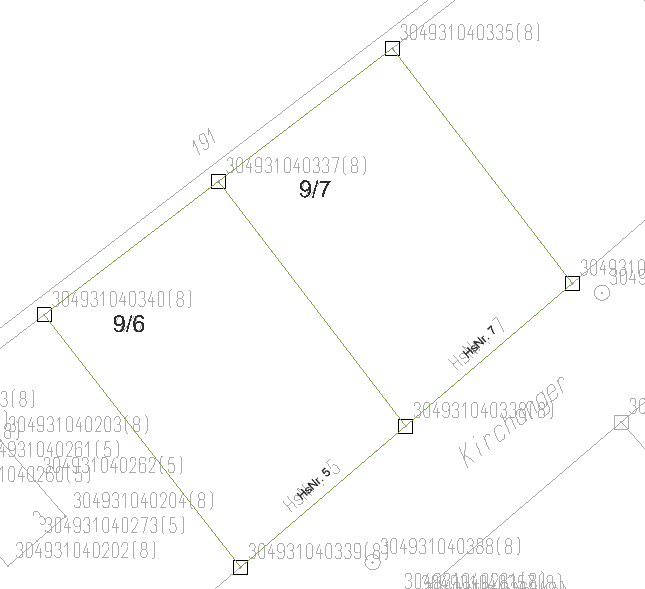
This example uses an older master plan with Gauss-Krüger coordinates. The land registry office has given you a current UTM file of a plot of land, which you want to adjust during import and place over the master plan.
Getting ready
Check the position of the existing data. Determine the coordinate range of the existing data. To do this, use  Measure - Coordinates to measure relevant points. Check whether an offset is defined in the Project Settings.
Note: It is better to use a project offset than to move the project contents (master plan) to the origin. Consequently, you can import the new plot of land by adjusting the coordinates. You do not need to change anything else.
This example uses a project offset; the data is not moved (in addition).
Transformation direction
Pay attention to the transformation direction. NTv2 files are available for one direction (usually from Gauss-Krüger to UTM). During import, you can change the direction of transformation by selecting the corresponding option.
You must define the systems yourself. When you get geographical data, always ask the supplier for the system in which the data was saved. You must also define the destination system yourself. We recommend that you use the system in which the data was supplied before the switch to UTM. This makes the new data compatible with older data.
To import a file by means of coordinate transformation
 Allplan icon on the title bar, point to Import and click Import AutoCAD Data.
 Settings... and open the General Settings tab.
 Reset in the lower-left corner of the dialog box.
 in the Coordinate transformation area.
The Set coordinate transformation dialog box opens.
Note: Make sure that the selected NTv2 file matches the position of the imported file. If the zones do not match, the coordinates will not be transformed.
You are back in the Settings... dialog box. The Coordinate transformation area lists the Source system and Destination system in the correct transformation direction.
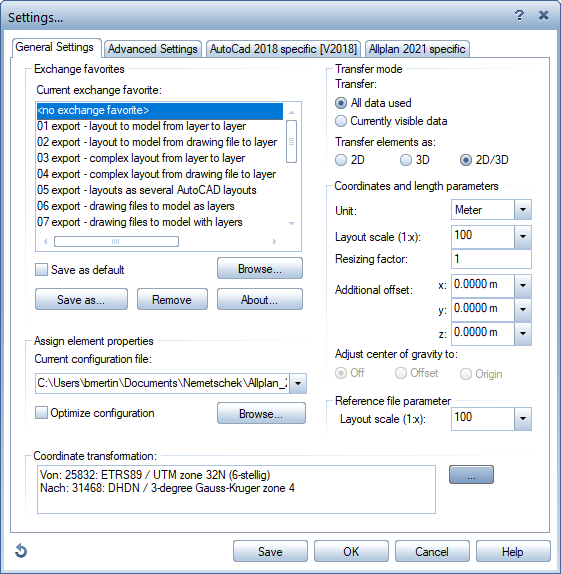
You do not need to change the configuration settings.
If the program detects large coordinates despite the project offset, select the Do not adjust coordinates (data is not adjusted; not recommended) option because you want to transform the coordinates and adjust them to the existing data.
The data will be imported.
|
(C) ALLPLAN GmbH |
Privacy policy |
