Objects palette
In the Objects palette, the predefined  Sort by attribute criterion is selected. The attributes assigned to the objects are at the top level in the hierarchy. The Name attribute is preset. You can choose the attribute you want to use as the sorting criterion. You can choose from all the attributes that are available. Objects without attributes can be found in the *not defined* list (sorted by object group and object type).
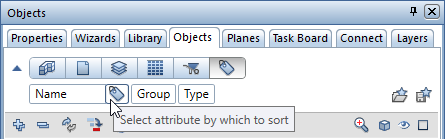
Click  Custom to expand the list box of the Objects palette. By clicking Select attribute by which to sort, you can open the Attribute Selection dialog box, where you can select the attribute by which you want to sort the objects. You can choose from all the attributes assigned to the objects in the active drawing files:
Note: As an alternative to the Material or Trade attributes for the first level in the hierarchy, the pre-defined sorting criteria  Sort by material or
  Sort by trade are available. With these sorting criteria, the Material or Trade attributes in selection of an attribute as a free sorting criterion is not present in the selection list of the Attribute Selection dialog box.
The categories indicate the current sort sequence: Attribute - Object Group - Object Type.
When you hover over the list box, the cursor changes to a double-headed arrow. By clicking a category and dragging it to its new position, you can change the sequence in which Allplan lists the objects.
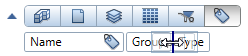
By right-clicking a category, you open a shortcut menu where you can turn sorting criteria and categories on and off. Up to six freely definable attributes can be determined for sorting. An attribute you have already selected as a custom sort criterion is not available either.
The  Load favorite and
  Save as a favorite tools can be found on the left of the toolbar (at the bottom of the palette). You can use these tools to save customized sorting definitions and retrieve these definitions later.
You can assign an object to a different attribute contained in the list. The object must be on a modifiable layer (layer status is  Current or
  Modifiable). In addition, the object must be visible (
 ). To move an object, you can use the drag-and-drop feature or the shortcut menu:

Click  Cut to cut the object at the lowest level in the hierarchy.
To assign the object cut to a different trade, use the shortcut menu of this trade:

Click  Paste to add the object cut to the selected trade. Allplan adds the object to the appropriate object group. If Allplan cannot find an appropriate object group, it creates a new one.
Note: If  color coding was assigned to the object to be moved, the object color will change in line with the color used in the destination folder once moved. If the process was reversed, then the color assignment will also be reversed too.
|
(C) ALLPLAN GmbH |
Privacy policy |