|
|
|
 Grupo de herramientas Elementos constructivos + Acabado interior
Puedes usar esta herramienta para insertar vanos de ventana en los muros. Puedes aplicar un SmartPart de ventana a este vano.
To create a window
 Window (How).
Note: In the case of walls with multiple construction layers, click the wall first and then define the parameters for the window opening. This automatically enters the properties of the wall in the dialog box and presents the advanced options for multitier walls.
Tip: Click  Get from Library to select and insert an opening that was created with the
  Smart Window and Door Symbols tool (How).
A preview of the opening is attached to the crosshairs. You can see the direction of opening. (This is particularly important for openings in multilayer walls where the offset varies from layer to layer.)
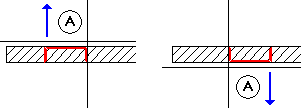
A Wall line clicked = exterior side of opening
Note: If Prompt for opening width is not selected on the Window context toolbar, Allplan uses the width specified in the Properties dialog box without prompting you again.
Note: When the Place label option is selected on the Window context toolbar, you can label the opening in the same manner as in the  Label tool.
Note: For quantity takeoff in accordance with German building regulations, check that the openings are within the components.
Note: Modifying a window opening means all parameters in the Properties palette can be changed.
|
(C) Allplan GmbH |
Política de privacidad |

 Tarea
Tarea